SD ToolsBox Plus software running on Mac M-series desktop with Windows Control Panel open

How to use SD Toolbox PLUS on M Series Mac – Step-by-Step Guide

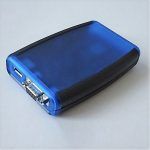
Many professionals rely on SD Card Toolbox PLUS for SD card management (CID read, CID write, Password protection, etc.), but until now, the device has only been supported on Windows PCs. But what if you own an ARM-based M-series Mac (M1, M2, or M3)?

Good News: You can run SD Card Toolbox PLUS on your Mac by installing Windows 11 ARM inside VMware Fusion, a free virtualization tool. This guide walks you through the process step by step, so you can use it on your Mac just like on a Windows PC with free software.

Step 1 – Download VMware Fusion

To run Windows on your Mac, you’ll need VMware Fusion (free download from Broadcom).

📌 This setup was tested on macOS Ventura 13.6.4, but newer versions should also work.

Step 2 – Install VMware Fusion

  • Open the installer and follow the prompts.
  • Once complete, launch VMware Fusion.

Step 3 – Create a Windows 11 ARM Virtual Machine

  1. In VMware Fusion, select New Virtual Machine.
  2. Choose “Get Windows from Microsoft” – VMware will download and install Windows 11 ARM.
  3. When asked for a product key, click “I don’t have a product key.” (It’s a small link under the box)
    • Windows will work with small limitations that don’t affect SD ToolBox Plus.
  4. Choose your edition (Home or Pro). Both should be fine, but it was tested on the Home edition.

Tip: If you don’t want to add a Microsoft account to this setup, you can skip it:

  • At the login screen, press Shift + F10 to open the command prompt and type:
    OOBE\BYPASSNRO
  • The system will reboot and restart setup. Now you should be able to skip login and create a local account instead.

Step 4 – Install VMware Tools

Once Windows on the Virtual machine is ready:

  1. In VMware Fusion, go to Virtual Machine → Install VMware Tools.
  2. Follow the installer inside Windows.

This will mount a disk image in the virtual machine and start the setup process of the VMware drivers for Windows. This will make the integration between the virtual Windows machine and macOS smoother (mouse pointer, USB, drag and drop, etc).

Step 5 – Configure USB Pass-Through

  1. In VMware, open Virtual Machine → USB → USB Settings.
  2. Click Advanced USB Options.
  3. Make sure to select “Ask what to do” under “When a new USB device is plugged into your Mac while this virtual machine is running VMware.”

👉 Buy SD Toolsbox Plus Now

Step 6 – Connect Your SD Card Toolbox Plus

  1. Plug in your SD Card Toolbox Plus to your Mac (USB-C to USB-C cable used in testing).
  2. VMware will ask where to connect it — select “Connect to Windows”.
  3. Open Windows Device Manager → you should see a USB serial device.

⚠️ Note: In the test setup, there were warnings in Device Manager about missing drivers for “Base System Device” and “USB Controller”. This did not affect the functionality of SD ToolBox Plus.

Step 7 – Install SD Card ToolBox Plus Software

Follow the setup wizard to install. Once finished, SD Card ToolBox Plus will be fully functional on your Mac.

SD ToolsBox Plus software running on Mac M-series desktop with Windows Control Panel open

🚀 Ready to Use SD ToolsBox Plus on Your Mac?

With this guide, you’ve seen how easy it is to set up SD ToolBox PLUS on any Apple Silicon Mac (M1, M2, M3). No Windows PC required.

👉 Don’t wait — get your SD Card ToolBox Plus today and unlock professional SD card management on both Windows and macOS.

🔗 Order SD Card Toolbox PLUS Now


Leave a Reply

Your email address will not be published. Required fields are marked *